Profit and Loss
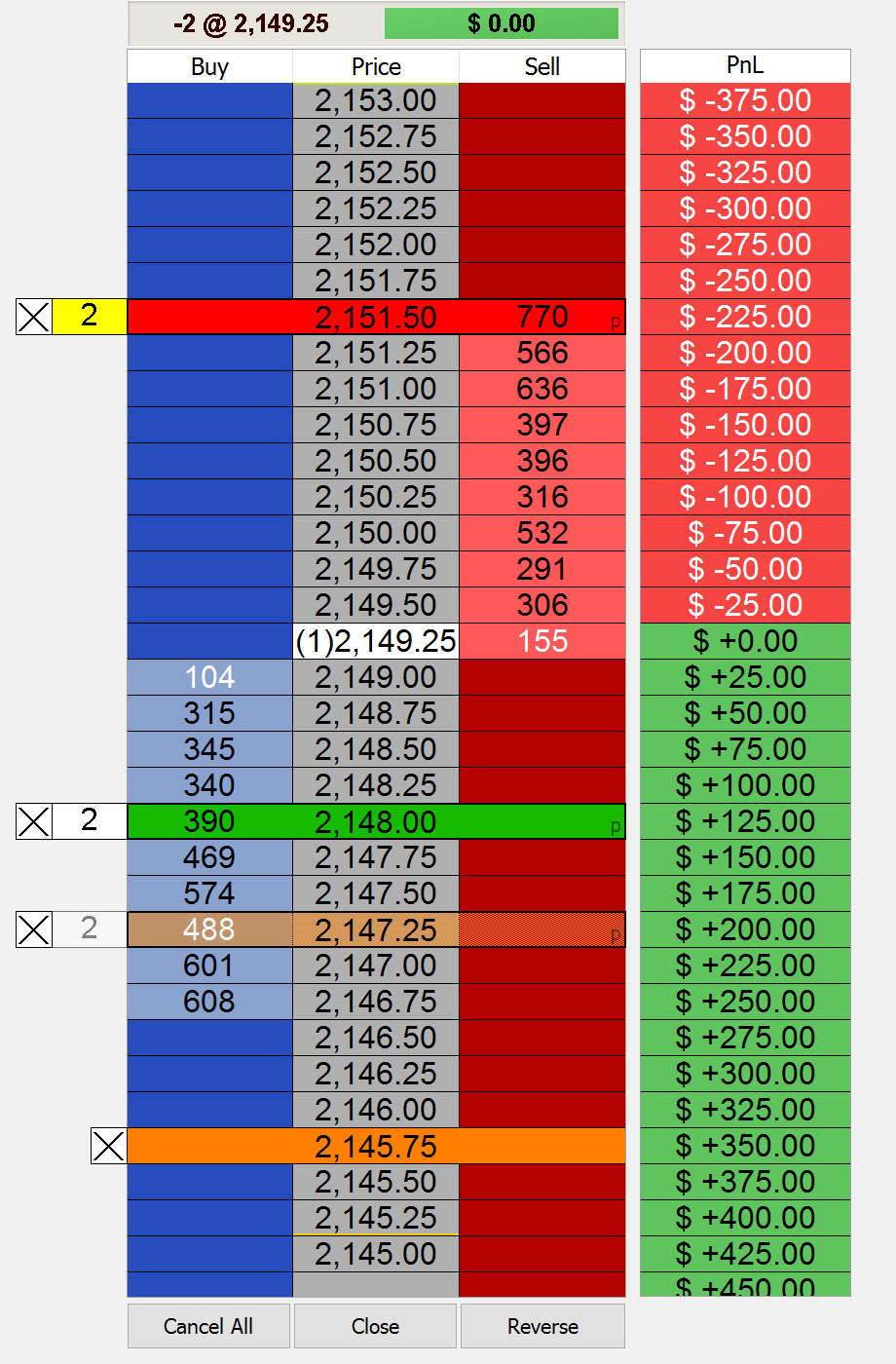
We make estimation of PnL much easier for you. Now there is no need to calculate how much profit you are to gain in a particular number of ticks. Simply enable PnL by right-clicking anywhere on the DOM window except for Buy, Price & Sell columns and control elements to see the shortcut menu and check the Show PnL.
Compact mode
Screen space is a prized commodity when you have many charts, scanners and DOM windows open at the same time. Compact Mode lets you save a little more by hiding some interface buttons and leaving visible only essential ones. You can always switch to Full mode by right-clicking and choosing the appropriate option.
Volume Profile
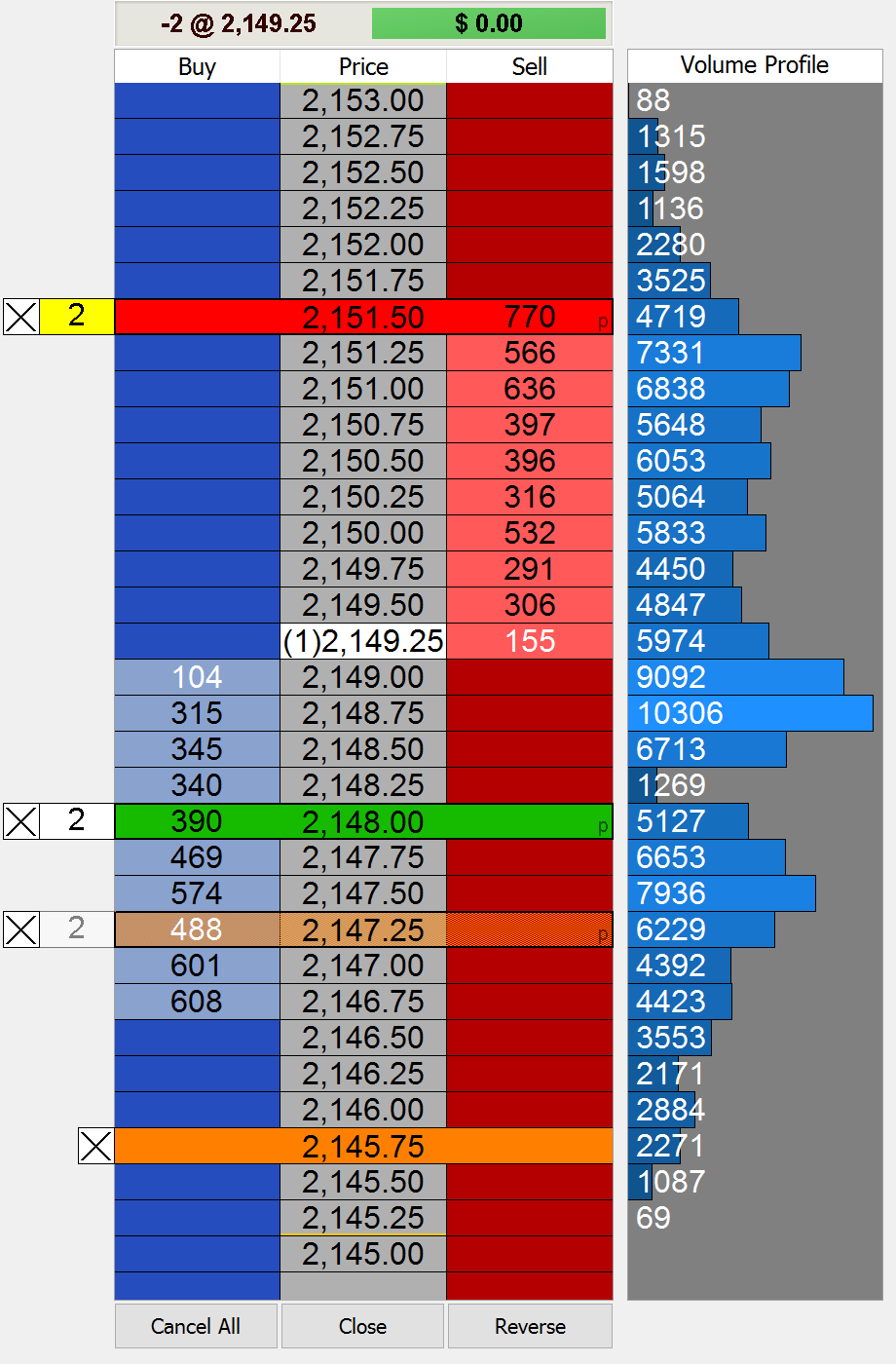
Volume Profile in DOM window allows discretionary traders to monitor changes in trade volume while making trading decisions live. To open Volume Profile window right-click anywhere on the DOM window except for Buy, Price & Sell columns and control elements to see the shortcut menu and check the Show Volume Profile option.
DOM
DOM

DOM
Ten levels of depth
A price ladder or DOM display shows each price level in the middle column with the number of buyers at each price level on the left, and the number of sellers at each price level on the right. See ten price levels for both asks and bids, so you know the spread of bids and offers. A deeper DOM gives a better overview of the market. For technical information on this feature look at the related Wiki page.
Two ways to display
DOM in MultiCharts has two modes of operation: dynamic and semi-static. Simply choose the mode through a right-click. Semi-static DOM mode means the DOM window will re-center once the current price hits the upper or lower boundary of the window. Dynamic DOM mode means the DOM window will automatically re-center after each new tick (price update) received. This mode is very useful for scalping strategies.
One-click order entry
Left-click a cell to place either a limit or stop order. A mouse click in the bid (blue) column at best ask or lower, or in the ask (red) column at best bid or higher, will place a limit order. A mouse click in the bid column on a price higher than best ask will place a stop order. Similarly, clicking on a price in the ask column below the best bid will also place a stop order. MultiCharts supports market, limit, stop and stop-limit single order types.
Setting Order Quantity
Enter the number of contracts manually or use the convenient calculator tool. The calculator automatically stores the last amounts used, so they can be quickly selected from a menu. It is also easy to add a certain amount of contracts to the amount already owned. Every time the calculator is opened the amount goes up by +1, because the program assumes the calculator is opened to change the amount of contracts by at least one.
Time in Force
How long should an order remain active? There are several available options: DAY (good for the rest of the day), GTC (good till cancelled), GTD (good till date), and IOC (instant or cancel). Please note that these options are not always enabled, it depends on the order type being placed.
Trade through any broker
Trade with any supported broker from the DOM; simply choose the broker and type in the symbol. Have several accounts? There is also a drop-down list for account choice. DOM data is streamed from the broker and may require special subscriptions to receive it. Dukascopy and FXCM don’t support DOM data.
Apply entry and exit strategies with ease
Staying protected in a fast moving market is a must for all traders. It is easy to drag-and-drop entire strategies. Apply some strategies to existing orders or to entire positions.
 |
 |
 |
 |
 |
 |
 |
 |
 |
 |
 |
 |
 |
Essence of entry strategies
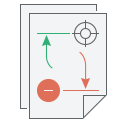
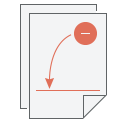
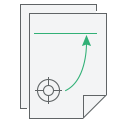
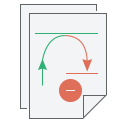
Entry strategies are pre-designed One-Cancel-Other (OCO) order groups to enter positions. They consist of combinations of limit and/or stop orders, and if one is filled then the other one is cancelled. They are shown as icons in the Trade Panel, and they can be applied to a chart by drag-and-drop. There are currently four entry strategies: Breakout, Fade, Breakout Up/Fade, and Breakout Down/Fade. Learn more about them in the Automation of Entries and Exits section.
Exit strategies are essential
Exit strategies were designed to protect against sudden market movements and to exit a position in a structured and organized fashion. Exit strategies can be used to manage risk, scale into and out of positions and to leave the computer while trades are on. Just like entry strategies, these exits are OCO groups consisting of limit and/or stop orders. It is very easy to drag-and-drop exit strategies to existing orders, apply them with a mouse right-click or auto-apply them to every new order placed. Learn more about them in the Automation of Entries and Exits section.
DOM

Quickly drag-and-drop orders
Visual trading is essential because most traders spot important points on a chart with their eyes, such as where a pivot will occur or a breakout might happen. It is easy to drag-and-drop orders precisely onto the DOM. Stop, limit and stop limit orders are shown as small icons with appropriate names, and they can be dragged to price levels since they are price orders. One-Cancels-Other (OCO) order groups may also be added to enter and exit positions. OCO orders consist of combinations of limit and/or stop orders, and if one is filled the other one is cancelled. OCO orders are also shown as icons and will be discussed in more detail in the Entry and Exit Automation section.
Easily adjust price levels
To change the price where orders are placed simply drag them up or down. Don’t like the new location? Just press Escape and the order will return to its original position.
DOM

MultiCharts
Level 2 data for automated strategies
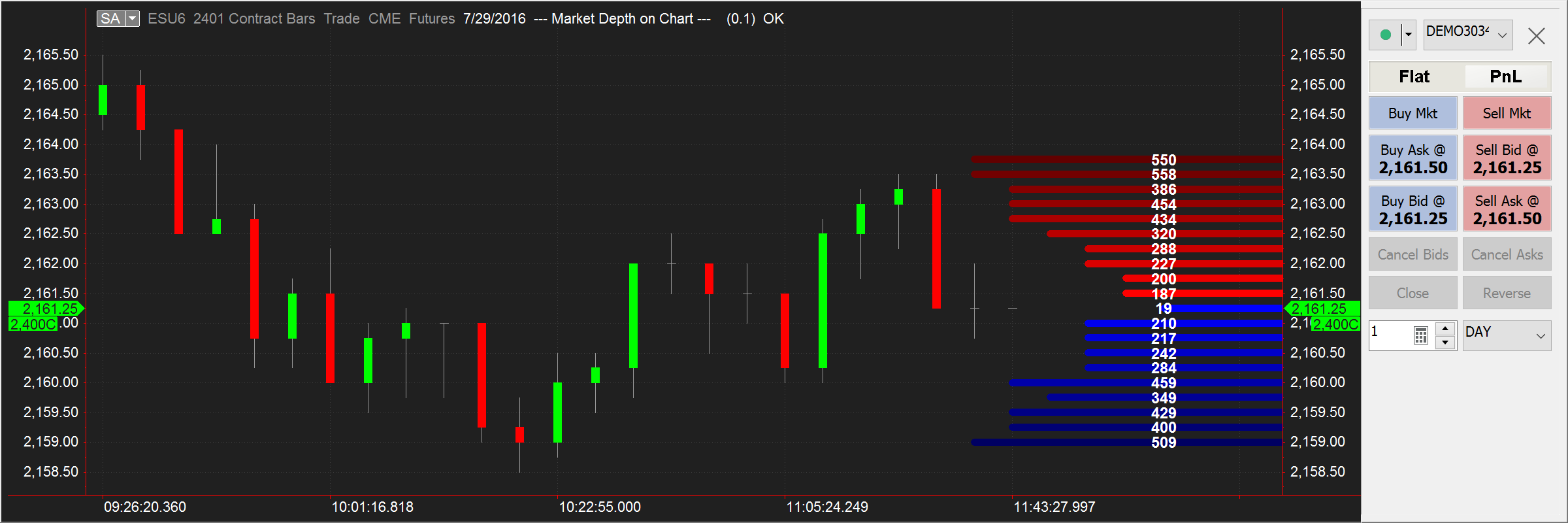
DOM data is accessible from strategies, so you can take into consideration ask and bid size at different price levels automatically. Shifts between the number of contracts being bought or sold at any given second can often indicate important changes in a larger trend. Seeing only current ask and current bid prices will only tell you the spread, but it won't tell if there are more sellers than buyers, for instance. Having access to ten levels of depth on each side through the strategy opens a wealth of opportunities to catch those moments when volume changes direction and make necessary conclusions.